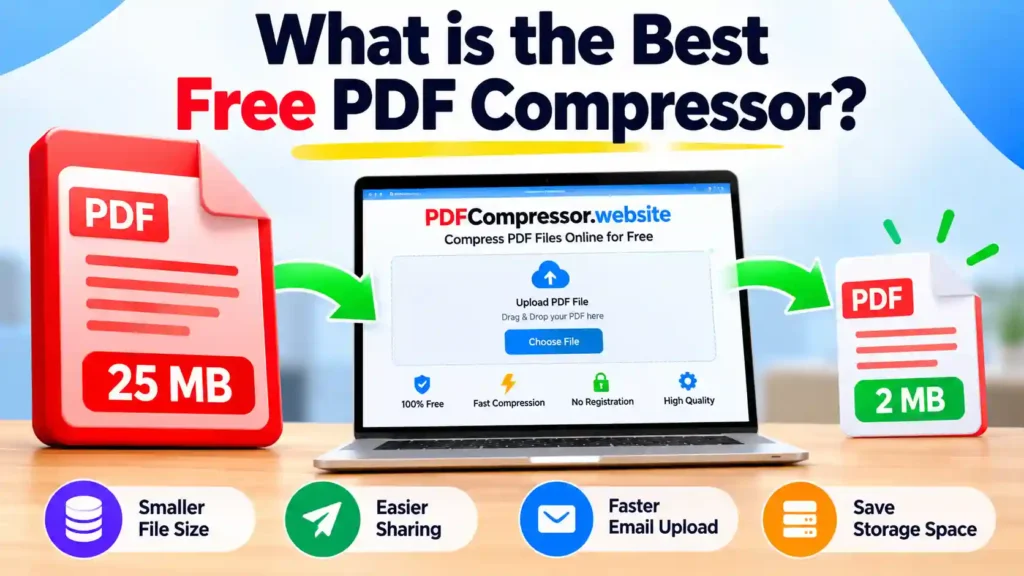
The best free PDF compressor helps you reduce file size without making text difficult to read or images blurry. Look for a tool that is easy to use, preserves document quality, and offers clear privacy information. If you need a quick solution, try PDFCompressor.website to explore online PDF compression.
What Is the Best Free PDF Compressor?
The best free PDF compressor is a tool that makes PDF files smaller without unnecessarily reducing their quality. It helps you upload documents faster, share files by email, save storage space, and meet online document upload limits.
However, not every PDF compressor works the same way. Some tools focus on maximum file-size reduction, while others try to preserve image quality. Some offer free compression with usage limits, while others provide more generous free access.
If you want a simple way to reduce the size of your documents, start with PDFCompressor.website. Visit the website to check out its PDF compression tool and see whether it meets your file-size requirements.
The right choice depends on the type of PDF you have, how small the file needs to be, and how much image quality you want to preserve.
What Should You Look for in a Free PDF Compressor?
Before choosing a tool, consider these important features.
1. Good Compression Without Blurry Text
A good PDF compressor reduces unnecessary file size while keeping text readable. This matters when you compress school assignments, business reports, application forms, presentations, or scanned documents.
Image-heavy PDFs may become much smaller because images can contain a large amount of data. However, aggressive compression can make photographs and scanned pages look blurry.
Always check the final document before sharing it.
2. Easy-to-Use Interface
You should not need technical knowledge to compress a PDF. A useful online tool should make the process straightforward.
Ideally, you should be able to select a PDF, start compression, and download the smaller file with only a few steps.
For a convenient starting point, visit PDFCompressor.website and explore the available compression options.
3. Clear File-Size Limits
Some free tools restrict the size of files you can upload. Others limit the number of compression tasks you can complete.
Check these restrictions before uploading a large document. If you regularly work with large PDFs, compare the available limits and decide which option suits your needs.
Do not assume that every tool advertised as free offers unlimited compression.
4. Document Privacy
PDF files can contain personal information, financial records, educational documents, or business details.
Before using an online compressor, read its privacy policy and check how uploaded files are processed, stored, and deleted.
For highly confidential documents, consider an offline tool or a verified browser-based solution that processes files locally on your device.
5. No Unwanted Watermarks
Check whether the tool adds a watermark or requires payment to download the compressed document.
A good solution should clearly explain its free features and any restrictions before you begin.
Which Free PDF Compressors Are Worth Considering?
Several established tools offer PDF compression. The best choice depends on your priorities.
PDFCompressor.website
If you want a straightforward place to start, visit PDFCompressor.website.
It is directly relevant for users looking to reduce PDF file sizes online. Check the tool’s current interface and supported file limits before processing your documents.
PDF24 Tools
PDF24 offers an online PDF compression tool and desktop software. It is worth considering if you want to compare online processing with an offline option.
Smallpdf
Smallpdf provides PDF compression alongside other document tools. Review its current free-plan restrictions if you expect to compress several files.
iLovePDF
iLovePDF includes PDF compression and additional features such as merging, splitting, and converting documents. It may be useful if you need more than one PDF function.
Adobe Acrobat Online
Adobe Acrobat offers online PDF compression. It is another option to consider if you already use Adobe’s document tools.
Important: Features, file limits, pricing, and free-use policies can change. Check each provider’s current terms before choosing a service. This guide does not claim that these tools have been tested against one another using identical PDF files.
How to Compress a PDF File Online for Free
Follow these general steps to reduce your PDF file size.
Step 1: Open the compression tool
Visit PDFCompressor.website and open the available PDF compression feature.
Step 2: Select your PDF
Choose the document you want to compress from your computer. Check the website’s file-size and format requirements before uploading it.
Step 3: Start compression
Follow the instructions displayed by the tool to begin processing your document.
Step 4: Download the compressed PDF
Once processing finishes, download the resulting file if the tool provides a download option.
Step 5: Check the final document
Open the compressed PDF and compare it with the original. Make sure the text remains readable, images look acceptable, and all pages are present.
If the file is still too large, try another compression setting or a different tool.
How Much Can a PDF Compressor Reduce File Size?
There is no single compression percentage that applies to every PDF.
The final result depends on the document’s contents, original file size, embedded images, fonts, and compression method.
For example:
- A text-based document may shrink only slightly.
- A PDF containing large photographs may offer greater opportunities for size reduction.
- A scanned document may need image compression to achieve a substantial reduction.
- A PDF that has already been compressed may show little additional improvement.
The important point is to balance file size and readability. A smaller PDF is useful only if it still meets your needs.
How to Compress a PDF Without Losing Quality
Although some compression methods can reduce image quality, you can take steps to protect your document.
- Keep a copy of the original PDF before compression.
- Choose a balanced compression setting when one is available.
- Avoid excessive image-quality reduction for documents containing charts, diagrams, or photographs.
- Open the downloaded file and inspect small text and important details.
- Check whether hyperlinks, selectable text, signatures, and page formatting still work as expected.
Some lossless techniques can reduce file size without sacrificing content quality, but they may not produce the smallest possible file. Stronger compression can create a smaller document while affecting image clarity.
Is a Free Online PDF Compressor Safe?
An online PDF compressor can be convenient, but its safety depends on how the service handles your files.
Before uploading a document, check the following:
- Does the website explain how files are processed?
- Does it publish a clear privacy policy?
- Does it explain when uploaded documents are deleted?
- Does the connection use HTTPS?
- Is the document suitable for processing through an online service?
Avoid uploading sensitive documents to a service unless you are comfortable with its privacy practices. HTTPS protects data in transit, but it does not automatically mean that files are processed locally or never stored on a server.
Why Should You Use PDFCompressor.website?
If your main goal is to reduce a PDF’s size without installing desktop software, an online tool can save time.
Visit PDFCompressor.website to explore its PDF compression feature. It can serve as a convenient starting point when you need a smaller document for email, online applications, document sharing, or storage.
Before relying on any compressor for an important task, verify its supported file size, review the resulting PDF, and make sure the output meets the destination’s requirements.
Frequently Asked Questions
What is the best free PDF compressor?
The best free PDF compressor depends on your requirements. Compare ease of use, compression quality, file-size limits, privacy practices, and free-use restrictions. You can also explore PDFCompressor.website as a starting point.
How can I compress a PDF online for free?
Open an online PDF compression tool, select your file, follow the compression instructions, and download the resulting document. Always check the output before sharing it.
Can I reduce PDF size without losing quality?
Sometimes. Lossless compression can reduce file size without changing document content, but the reduction may be limited. Methods that compress images more aggressively can affect visual quality.
Why is my PDF still large after compression?
Your PDF may contain high-resolution images, scanned pages, embedded fonts, or content that has already been compressed. Try another compression setting or review the images inside the document.
Is an online PDF compressor better than desktop software?
An online tool is convenient because it generally does not require installation. Desktop software may offer more advanced controls or offline processing. The better option depends on your workflow and privacy requirements.
Can I compress a PDF for email or online applications?
Yes. Compressing a PDF can help you meet email attachment limits or online application requirements. Check the maximum permitted file size and verify that the compressed document remains readable.
Final Verdict
The best free PDF compressor is one that reduces file size while keeping your document useful, readable, and suitable for sharing. Compare the available features instead of choosing a tool based on its name alone.
If you need to reduce the size of a document, visit PDFCompressor.website and explore its PDF compression tool. Check the available options, compress your file, and review the final result before sending or uploading it.